

You have until June 10, 2026, to download your game saves from Amazon Luna before the cloud gaming service officially ends streaming access for individual purchases. While the refund process handles your wallet, it doesn’t automatically protect the fifty hours you put into an RPG or the hard-earned unlocks in your favourite indie games.
To keep your progress, you need to navigate the Amazon Luna dashboard to download your game saves manually and move them to a PC environment or a cloud gaming service like GeForce NOW.
The Ticking Clock for Your Progress
I remember when I first realized my Control save was stuck in an environment that was shifting under my feet; it’s a gut-punch for any gamer who cares about their history. Amazon confirmed they will allow data downloads until September 8, 2026, but since you lose the ability to actually see or verify your library in the cloud on June 10, you should act much sooner. If you wait until the last minute, you might find that certain games have already rotated out of the reachable catalogue, making it much harder to trigger the necessary data export for specific licenses.
Once you trigger the “Prepare” process, you have a strict 14-day window to actually download the file before the link expires. If you jump back into the game on Amazon Luna to finish one last thing after requesting your data, that request becomes invalid and you’ll have to start the export over again. You should also ensure you’re using a desktop browser for this. The mobile version of the Amazon Luna web app often hides the necessary menus, and you’ll want a physical keyboard to rename those files once they land in your Downloads folder. Taking these steps early ensures you aren’t caught in a queue when everyone else realizes their progress is at risk.
Downloading Your Save Game Data Step by Step
Navigating the interface is direct, but since Amazon doesn’t offer a bulk export, you’ll need to follow these steps for every game in your library individually.
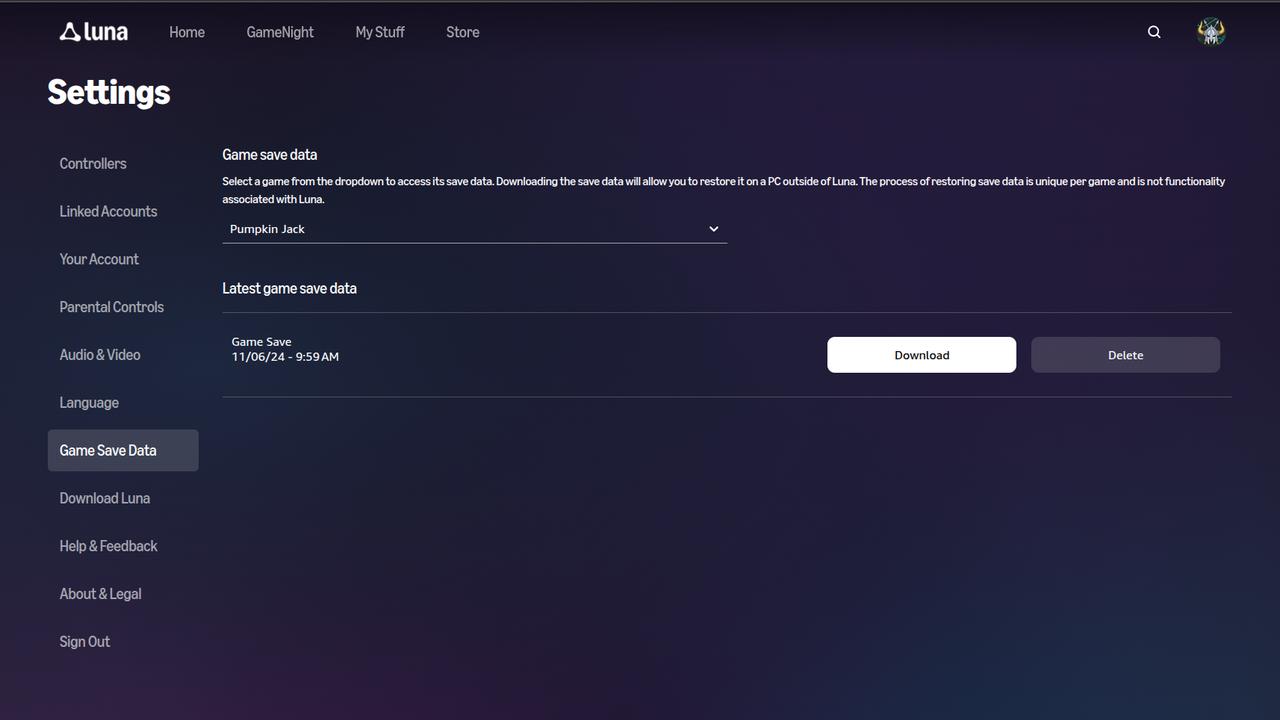
- Open Settings: Click your profile icon in the top right corner of the Luna home screen and select “Settings.”
- Access Save Data: Look at the sidebar menu and click on “Game Save Data.”
- Select Your Game and Trigger Preparation: Click the dropdown menu, pick the specific game you want download your save game data, and click the “Download” button next to the game’s latest save entry. A separate screen will appear showing that Amazon Luna is “Preparing save data for download.”
- Wait for the Bundle: Don’t close your browser window during the preparation phase. Amazon Luna is currently bundling your files into a zipped folder.
- Final Download: When the screen refreshes to show “Save data ready for download,” click the final “Download” button to save the ZIP folder to your hard drive.
Bridging the Gap to GeForce NOW
Most of these files are in a standard format that PC versions of the game will recognize, but they aren’t always ready to use immediately. You may need to rename certain files to match the folder structure of your new home. For example, a file named “luna_save_01” might need to be changed to “savegame_01” to match the local directory for GOG or Steam. Launcher software like Ubisoft Connect looks for very specific naming conventions before it will recognize your progress, so check a community wiki if the game doesn’t see your data right away.
If you plan on playing these games through GeForce NOW, you’ll first need to install the game on a physical PC, drop the saves into the correct folder, and let the cloud sync happen. Once the launcher sees your local file, it will push that data to its own cloud. It’s a bit of legwork, but it ensures you don’t have to start over again.
Saving Your Amazon Luna History Keeps the Cloud Pro-Consumer
Game preservation isn’t just about keeping software alive; it’s about the time we invest in the experience. Letting these saves vanish would be a massive loss for the community, and it’s exactly the kind of avoidable hurdle that gives cloud gaming a bad name in some circles. We advocate for separating the gaming platforms from the specific hardware, and being able to move your progress from one service to another is the ultimate proof that this model can work for you. Downloading these files ensures your history belongs to you rather than the company hosting the server.
By pulling your data now, you’re proving that the “play anywhere” promise of the cloud doesn’t have to end just because a storefront changes its mind. Cloud gaming should add more ways to play, not create new ways to lose your history. Rescuing these files is a small victory for everyone who believes our digital libraries should be permanent. It’s a necessary step to keep the cloud-first mission sustainable and respectful of the hours we put into our digital worlds.
As always, remember to follow us on our social media platforms (e.g., Threads, X (Twitter), Bluesky, YouTube, and Facebook) to stay up-to-date with the latest news. This website contains affiliate links. We may receive a commission when you click on these links and make a purchase, at no extra cost to you. We are an independent site, and the opinions expressed here are our own.