


Cloud gaming on the PlayStation Portal has quickly gone from a neat experiment to a real way to play your PS5 games anywhere. If you’ve already set up cloud gaming using our beginner’s guide to cloud gaming on PlayStation Portal, you know how simple it is to get started. And if you caught our PlayStation Portal cloud streaming launch and feature breakdown, you’ve seen how much the latest update improved performance and added new features.
Once you’re comfortable with the basics, the fun part begins, finding the games that shine through streaming. Our best PS5 games to play with cloud gaming on PlayStation Portal article highlights some great picks to start with.



This guide focuses on the next step: fine-tuning your experience. From improving stability to using 3D Audio and managing cloud saves, these tips are all about getting smoother, more reliable cloud gaming on PlayStation Portal.
1. Adjust Streaming Resolution for Stability
When it comes to cloud gaming on PlayStation Portal, resolution can make a big difference. Higher resolution looks sharper, but it also needs a stronger and more stable internet connection.
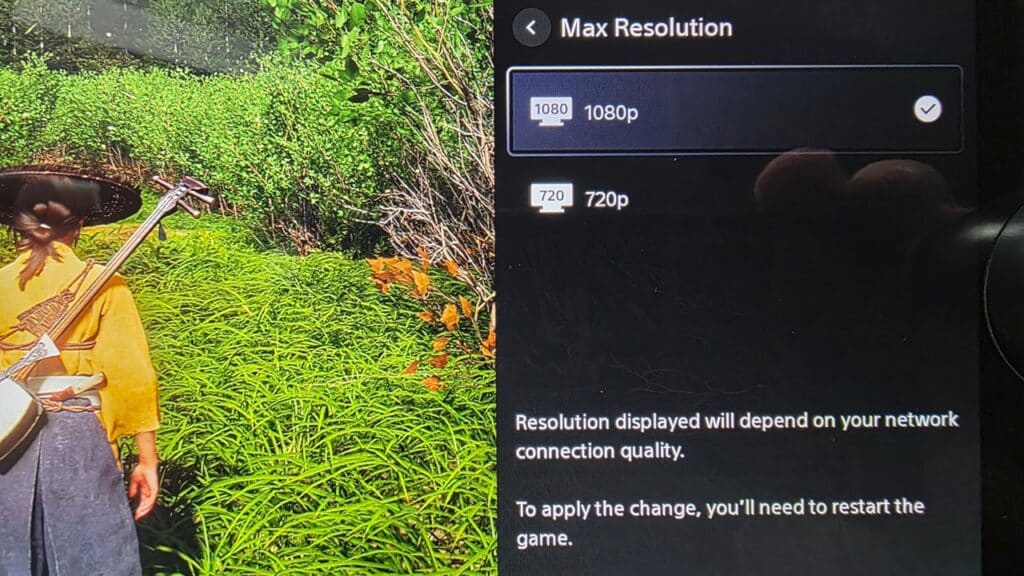
If your connection is solid, stick with 1080p streaming for the best picture quality. You’ll need at least 13 Mbps for both upload and download speeds to keep things smooth. If your connection dips or you notice lag, switch to 720p. It still looks clean on the Portal’s screen and keeps gameplay responsive.
You can change the setting mid-session by opening the quick menu and selecting Max Resolution. Choose 1080p for the best image or 720p for stability. Once changed, restart the stream to apply the new setting.
It’s a small tweak that can make a big difference. Games that rely on timing, like action or fighting titles, feel noticeably steadier at 720p, while slower story-driven games look great at 1080p. Try both settings and see which one feels best for your setup.

2. Use the Network Status Tool
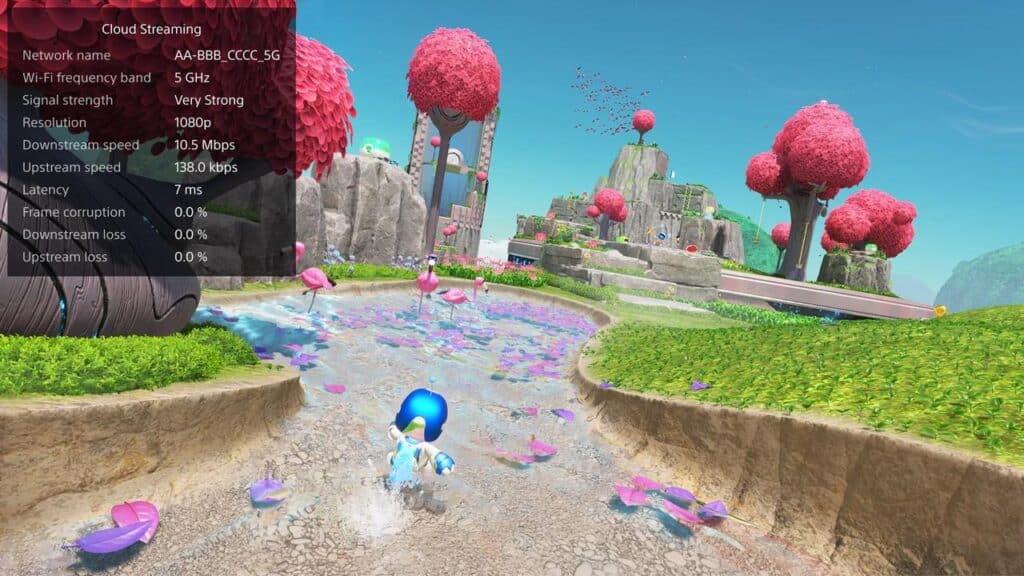
Cloud gaming relies on consistency, not just speed. The Network Status tool built into PlayStation Portal helps you see how stable your connection really is while streaming.
To check it, open the quick menu during a cloud gaming session, then go to Troubleshoot → Show Network Status. You’ll see details like signal strength and connection quality. If the connection drops or fluctuates, it might cause small visual hiccups or momentary pauses.
Keeping an eye on this tool helps you spot problems early. If you’re seeing dips, try moving closer to your router or switching to a faster Wi-Fi band. Even minor adjustments can make streaming smoother and reduce any hiccups mid-session.
It’s a simple feature many users overlook, but it’s one of the easiest ways to keep cloud gaming stable on PlayStation Portal.
3. Take Advantage of 3D Audio for Cloud Games
One of the best parts of cloud gaming on PlayStation Portal is that it now supports 3D Audio for both Remote Play and cloud streaming. You’ll hear sound all around you, from footsteps behind you to voices off in the distance.
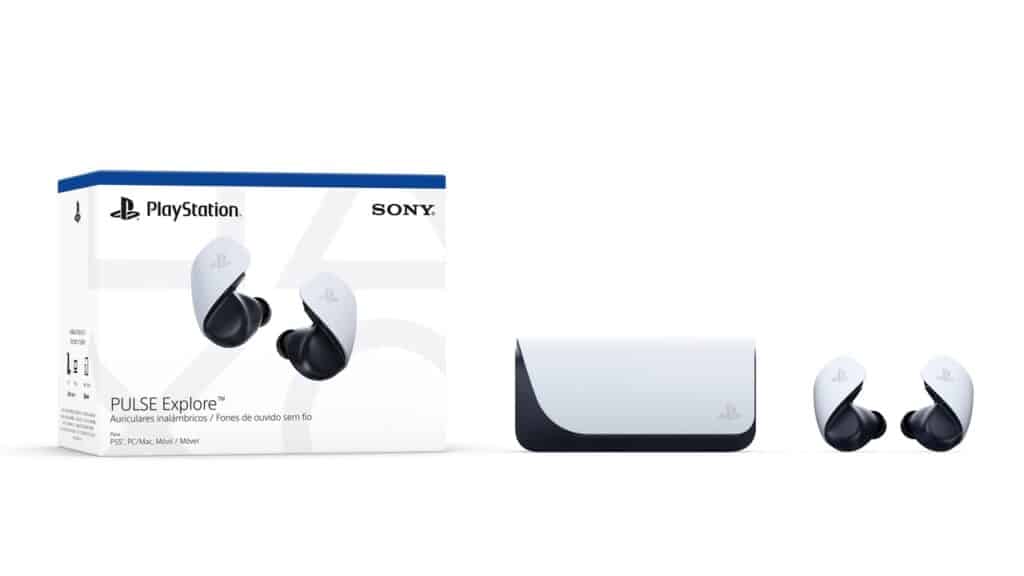
To use it, connect a compatible headset or earbuds. The Pulse Explore wireless earbuds, PlayStation Pulse Elite wireless headset, or any wired headphones work great. Then just start streaming a supported PS5 game and the audio automatically adjusts for 3D sound.
It’s a small upgrade that changes how some games feel. Action titles like God of War Ragnarök and Final Fantasy VII Rebirth sound more alive, while exploration games like Ghost of Tsushima pull you deeper into their worlds.
Once you try 3D Audio during cloud gaming, it’s hard to go back. It adds clarity and a sense of space that makes handheld play on PlayStation Portal even more immersive.
4. Manage Cloud Saves and Game Progress
One of the biggest advantages of cloud gaming on PlayStation Portal is how your save data syncs automatically. You never have to worry about losing progress or manually transferring saves between devices.
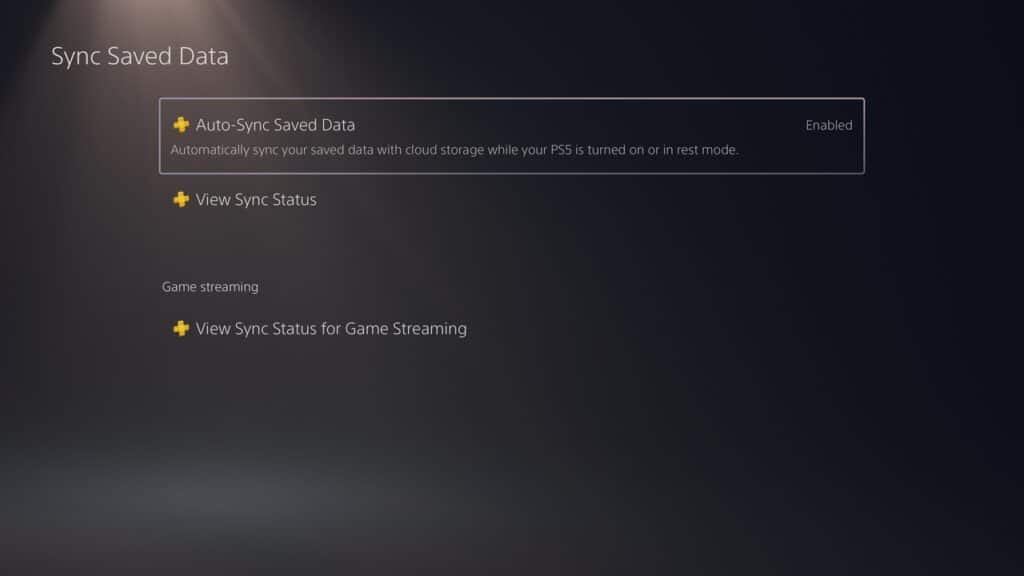
Every time you play through cloud streaming with PlayStation Plus Premium, your save files are stored in the cloud. When you switch back to your PS5 or another supported device, your data is already waiting. It’s quick, seamless, and completely automatic.
To double-check that your saves are syncing, open your PS5 later and go to Settings → Saved Data and Game / App Settings → Saved Data (PS5) → Sync Saved Data. Confirm that Auto-Sync Saved Data is enabled.
It might not seem like much, but this feature makes handheld gaming feel effortless. You can pick up where you left off at any time, whether you’re finishing a quest in Final Fantasy VII Rebirth or cleaning one last level in PowerWash Simulator 2.
If you’re curious which titles currently support cloud streaming, check out our list of all the PS5 games you can stream right now on the PlayStation Portal with PlayStation Plus Premium.
5. Adjust Accessibility Options for Comfort
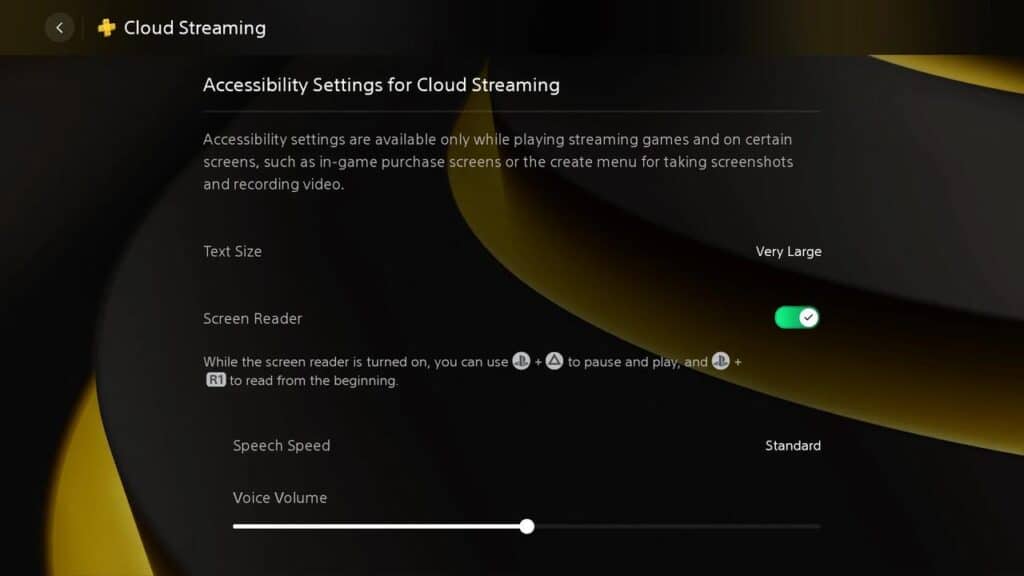
Cloud gaming sessions can last a while, so comfort matters. PlayStation Portal includes a few accessibility settings that make things easier on your eyes and hands during longer play sessions.
While streaming, open the quick menu and go to Cloud Streaming → Accessibility Settings for Cloud Streaming. Here, you can adjust the text size or enable the screen reader for supported screens. These small tweaks help if you prefer larger menus or want clearer text when playing handheld.
They also make story-heavy games easier to enjoy without straining to read dialogue or on-screen prompts. The settings save automatically, so once you find what works, you can leave them that way for every cloud gaming session.


Accessibility on PlayStation Portal isn’t just about inclusion. It’s about comfort and ease of use. Take a minute to personalize these options, and cloud gaming will feel much smoother in the long run.
6. Keep the Portal Secure and Updated
Cloud gaming works best when your PlayStation Portal is secure and running the latest firmware. Each system update often improves stability, adds new features, or fixes minor bugs that affect streaming quality.
To stay current, go to Settings → System → Update System Software. The Portal checks for updates automatically, but it’s worth doing manually once in a while.
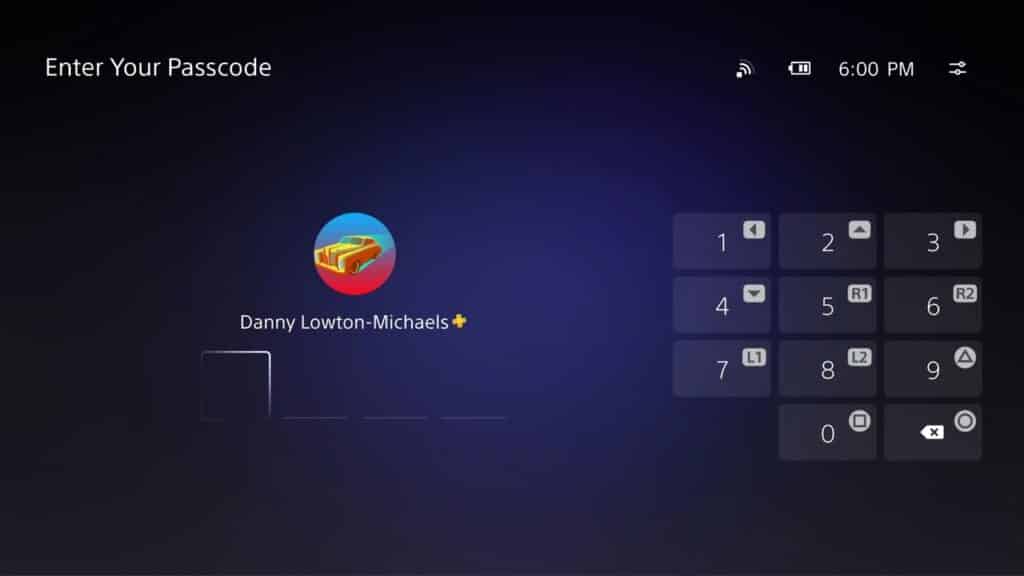
You can also add a passcode to keep your device protected, especially if you use it while traveling. Go to Settings → System → Passcode and set a simple four-digit code.
Keeping your Portal up to date and secure ensures everything runs smoothly when you’re cloud gaming. It’s a quick habit that helps avoid interruptions and keeps performance consistent over time.
Getting the Best Cloud Gaming Experience on PlayStation Portal
Cloud gaming on PlayStation Portal keeps getting better with every update. The mix of convenience and quality now makes it one of the easiest ways to enjoy your PS5 library anywhere. Whether you’re fine-tuning settings or testing new features, these small adjustments go a long way.
Try different resolutions to find your ideal balance, check your network status regularly, and take advantage of features like 3D Audio and cloud saves. These tools are built to make streaming smoother, more personal, and easier to rely on day to day.
If you’re just starting out, you can revisit our beginner’s guide to cloud gaming on PlayStation Portal
for setup help or check out our best PS5 games to play with cloud gaming on PlayStation Portal
for great recommendations.
Cloud gaming isn’t just an extra option anymore. It’s becoming a core part of the PlayStation experience. Once you start streaming this way, it’s hard to imagine going back. Want to see what’s playable right now? Here’s the full list of PS5 games you can stream with cloud gaming on PlayStation Portal using PlayStation Plus Premium.
As always, remember to follow us on our social media platforms (e.g., Threads, X (Twitter), Bluesky, YouTube, and Facebook) to stay up-to-date with the latest news. This website contains affiliate links. We may receive a commission when you click on these links and make a purchase, at no extra cost to you. We are an independent site, and the opinions expressed here are our own.