


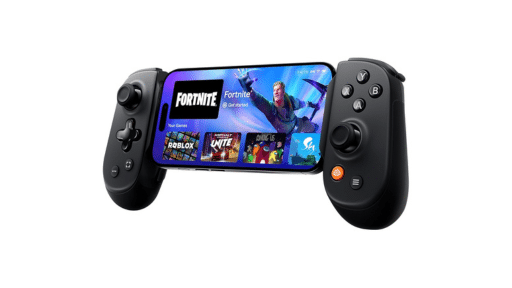
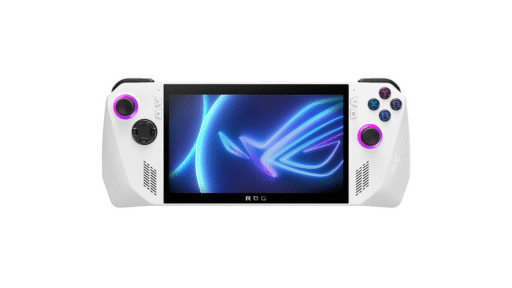
The ROG Xbox Ally is one of the best Windows handhelds available today. However, its ultimate potential lies in combining its hardware power with the flexibility of cloud gaming. Imagine accessing GeForce NOW, Amazon Luna, and other streaming platforms all from one unified, controller-friendly interface. While Xbox’s Full Screen Experience improves the core system, accessing cloud services can be a bit cumbersome.
With a simple process, you can transform your Ally into the definitive cloud gaming machine. You can seamlessly integrate web-based services into Full Screen Experience. This guide will walk you through turning any web-based platform, from cloud gaming services to communication apps like Discord, into native apps that launch directly without having to swap to Windows Desktop.
Step 1: Install or Create a Native App for Your Service
Some cloud gaming services, like GeForce NOW, offer a dedicated Windows application. If possible, you should use the official app, as it is often highly optimized for performance, resolution, and controller input. For services that only offer a web interface, like Amazon Luna, you can use Microsoft Edge to convert the website into a standalone application.
Option A: Installing a Dedicated Windows App (Recommended)
- Check for an App: Check the official website of your desired cloud gaming service. For example, GeForce NOW has a dedicated Windows app. This is recommended for the best experience, especially for features like higher resolution and frame rate streaming.
- Download and Install: If an app is available, download and install it as you would any other Windows program.
Option B: Creating a Web App with Microsoft Edge (For Web-Only Services)
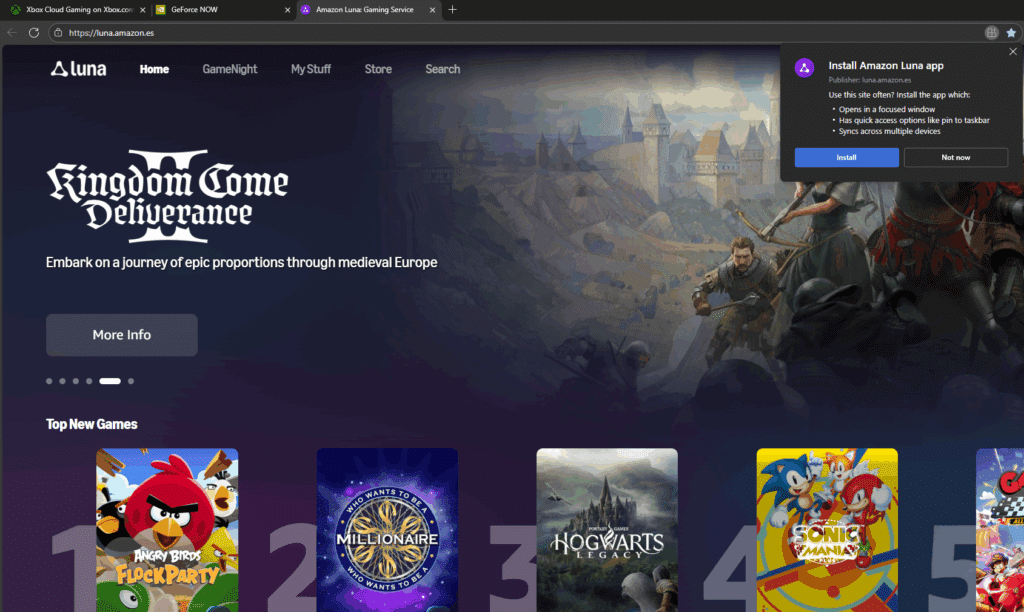
For services like Amazon Luna (which primarily uses a web client) or any other web-based tool you want to integrate, you can use Microsoft Edge to convert the website into a Progressive Web App (PWA). This strips away all the browser clutter (tabs, address bar, etc.), giving you a true full-screen experience perfect for a handheld device.
- Open Microsoft Edge: Launch the Edge browser from the “My Apps” section in your Library. Make sure it’s enabled in the Xbox app settings. Then navigate to the main page of your desired cloud gaming service.
- Install the Web App: Once on the service’s homepage, look for a small icon on the right side of the URL bar. The icon looks like a monitor with a download arrow. It may also appear as a plus sign if it’s an official PWA.
- Finalize Installation: Name the app if prompted, then click Install. The app will launch in its own dedicated window2.
This new Web App is now an official application on your Windows machine. It comes complete with its own entry in the Start Menu, making it ready for the next step.
Step 2: Integrate into Armoury Crate SE
Now that your cloud gaming services are installed as native apps, you need to add them to the Armoury Crate SE library. For the best user experience, we’ll tag them so they appear under the dedicated Game Platforms tab.
- Open Armoury Crate SE.
- Go to Library Management: Navigate to the Content section (or the Game Library) and find the option for Manage Library.
- Add the New App: Select the Add Game/App to Library option. This will usually present a list of applications currently installed on your system. Since both the official Windows App (Option A) and the Web App (Option B) are proper Windows applications, they should appear in this list.
- Set the Tag as “Game Platform”: After adding the app, find it in your main Armoury Crate library (it may be listed under All Games initially).
- Select the newly added application and press the Game Options button.
- Go to Game Info, then select Tags.
- Check the box for PC Gaming Client.
- Change the name and artwork as you see fit.
- Save your changes.

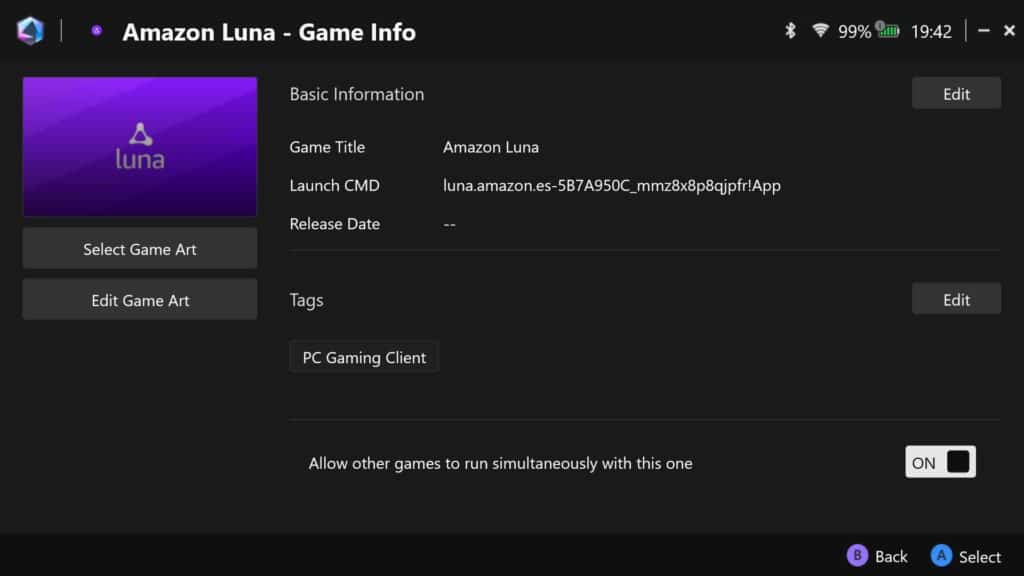
The application will now move from the “All Games” list to the Game Platforms tab. It will sit neatly alongside your other launchers. Repeat this process for all your cloud gaming services. Also do it for utility apps like Discord or Twitch, ensuring a fully customized and unified handheld experience!
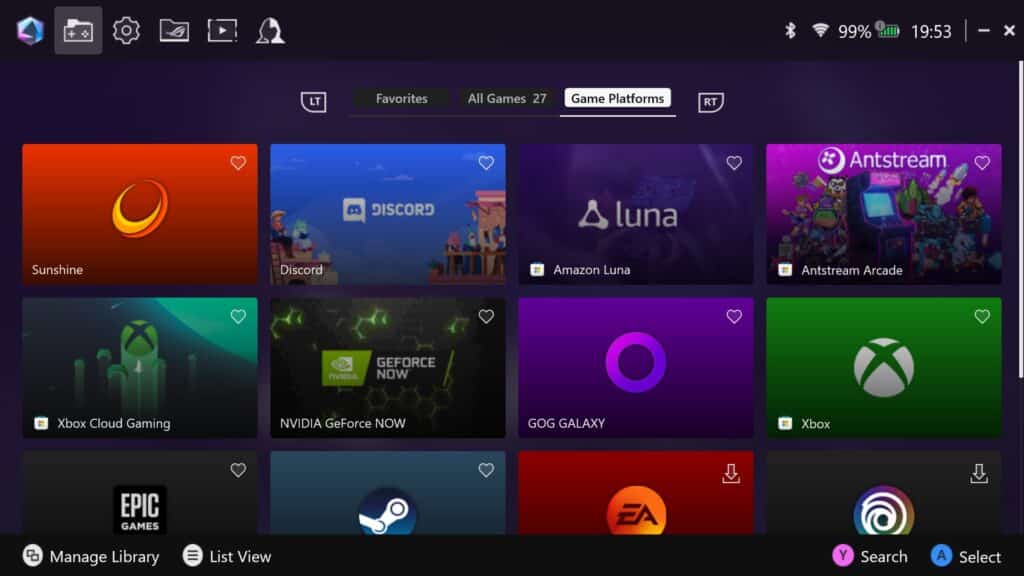
Instead of juggling browser bookmarks or dealing with a mouse and keyboard in Windows desktop mode, you can now access all your cloud gaming libraries with just your controller. This makes your ROG Xbox Ally a truly versatile and comprehensive handheld console. While adding these apps to the My Apps section within Xbox would be ideal, this little workaround will save you plenty of time. You can spend that time on gaming, on the cloud, of course.
As always, remember to follow us on our social media platforms (e.g., Threads, X (Twitter), Bluesky, YouTube, and Facebook) to stay up-to-date with the latest news. This website contains affiliate links. We may receive a commission when you click on these links and make a purchase, at no extra cost to you. We are an independent site, and the opinions expressed here are our own.