


Using a controller with Windows can get frustrating when a game doesn’t recognize the hardware or button layout the way you expect. That can happen when you use a controller outside the ecosystem it was originally associated with, including the Google Stadia Controller, Amazon Luna Controller or NVIDIA SHIELD Controller.
PadForge offers another way to handle that. The free Windows utility recognizes supported physical controllers and can map their controls to a virtual Xbox, PlayStation, Nintendo or other supported controller type. That means the controller in your hands stays the same while a Windows game can see a different virtual gamepad.
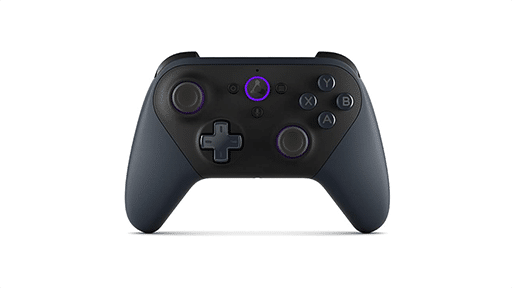
PadForge Recognizes Stadia, Luna and SHIELD Controllers
PadForge’s device database includes dedicated entries for the Google Stadia Controller, Amazon Luna Controller over Bluetooth and NVIDIA SHIELD Controller v1.04. That lets PadForge identify the physical controller before routing its controls through a virtual gamepad.
The Bluetooth qualifier is important for the Amazon Luna Controller because that’s the connection method specifically listed by PadForge.
PadForge doesn’t change the controller’s firmware or try to restore features from its original ecosystem. Instead, it handles the controller as an input device in Windows and maps those controls to the virtual controller type you choose.
Set Up a Virtual Controller in PadForge
PadForge is a portable Windows app, so there is no traditional installer. Download the current Windows build, extract the ZIP and run PadForge.exe. The app requires administrator access at startup to read physical controllers and manage its drivers.
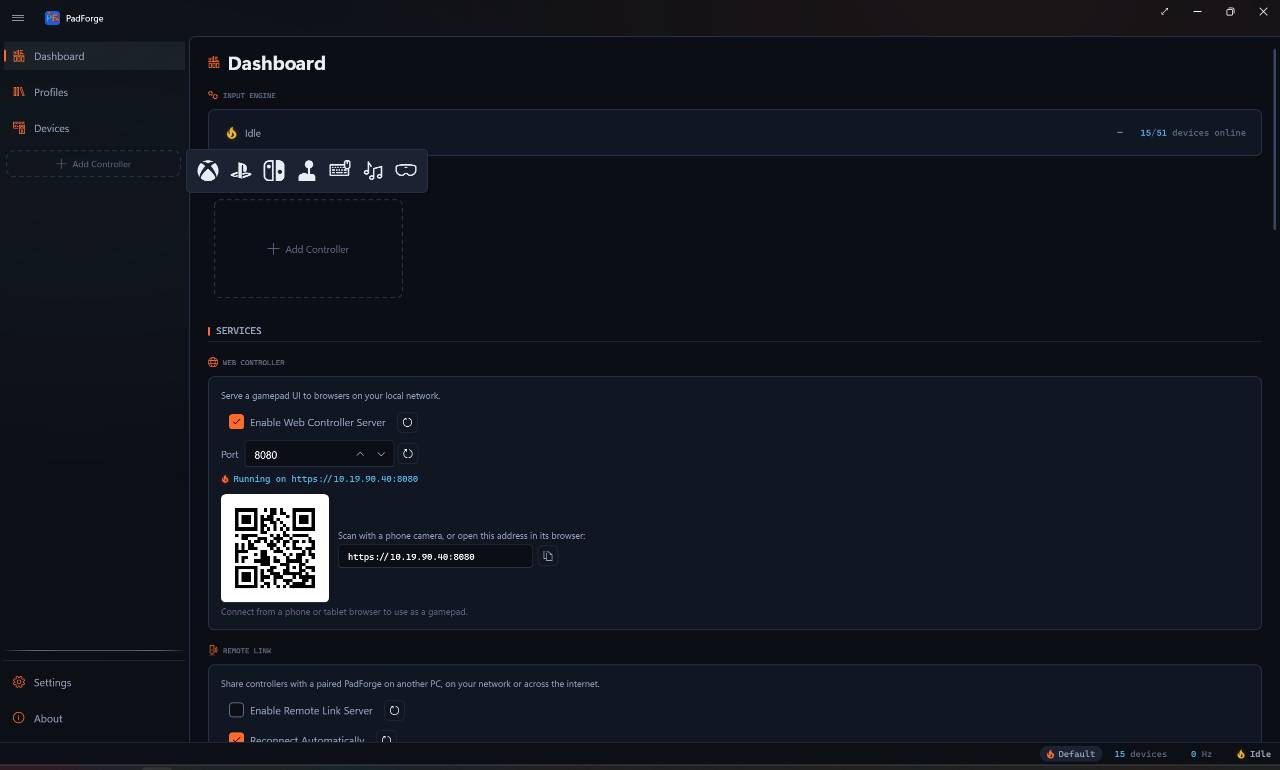
Follow these steps to remap one of the supported controllers.
- Open PadForge and select Add Controller on the Dashboard.
- Choose the virtual controller type you want, such as Xbox, PlayStation, Nintendo or Extended.
- Connect your physical controller and open the Devices page once it appears.
- Select the controller and assign it to your virtual slot under Virtual Controller Assignment.
- Adjust the mapping as needed and save the setup as a profile if you want to use it again.
PadForge installs HIDMaestro automatically the first time a connected device is assigned to an Xbox, PlayStation, Nintendo or Extended slot. HIDMaestro creates the virtual controller that Windows games see. Keyboard and mouse mappings use a separate path and don’t require HIDMaestro.
Use HidHide if a Game Detects Both Controllers
Some games can detect both the physical controller and the PadForge virtual controller. When that happens, the game can register the same input twice.
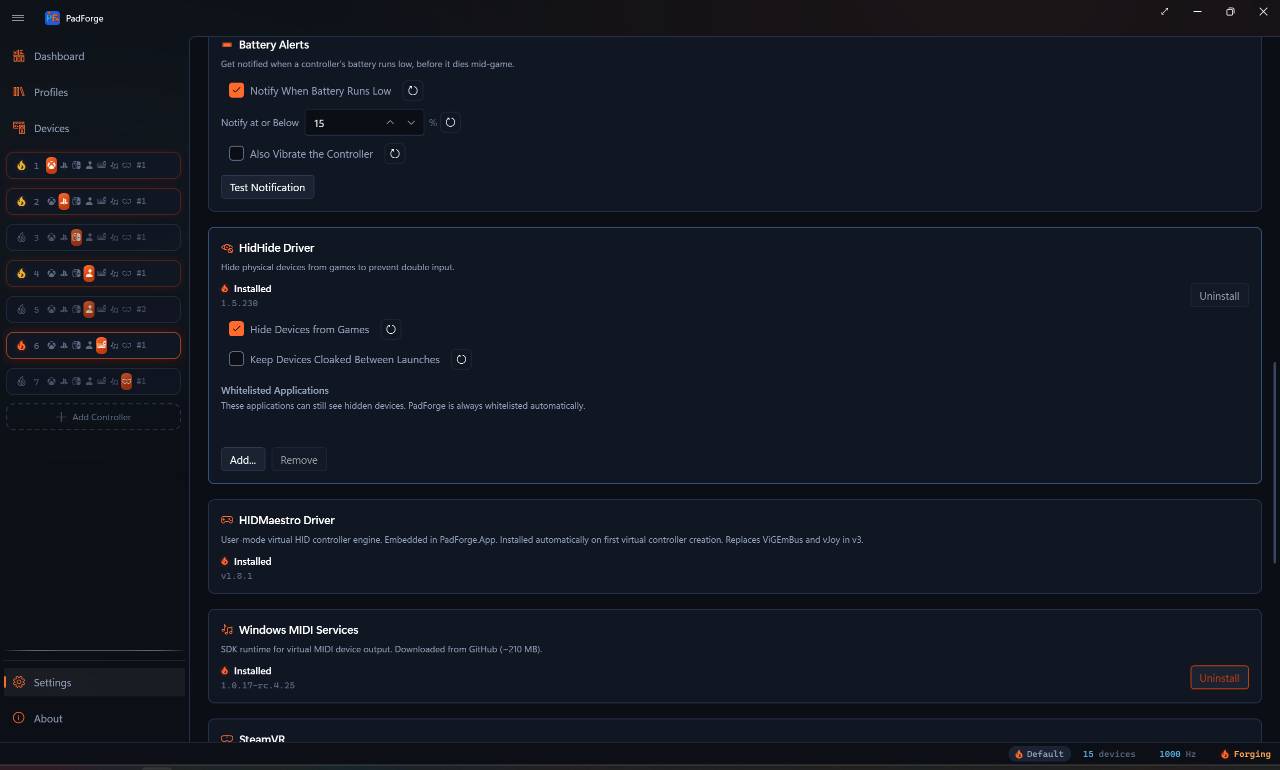
PadForge supports HidHide for this situation. HidHide hides the physical controller from the game while leaving the virtual controller visible. PadForge recommends skipping it unless you’re actually experiencing double input.
PadForge is free with no subscription or paywall. Its source is available under CC BY-NC-SA 4.0.
The current stable release is PadForge 4.5.3. It includes an in-app updater, although anyone moving from 4.5.2 or earlier needs to install 4.5.3 manually once before using it.
If a Windows game doesn’t recognize your controller the way you need it to, PadForge provides a way to keep using the physical controller while changing the gamepad Windows presents to the game.
As always, remember to follow us on our social media platforms (e.g., Threads, X (Twitter), Bluesky, YouTube, and Facebook) to stay up-to-date with the latest news. This website contains affiliate links. We may receive a commission when you click on these links and make a purchase, at no extra cost to you. We are an independent site, and the opinions expressed here are our own.